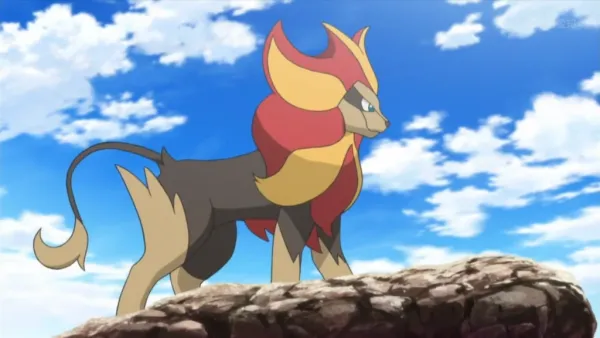
Pokopia is one of the most interesting multiplayer experiences available for Nintendo Switch 2 players. The game blends life simulation, exploration, and creative building with the charm of the Pokemon world. Because the game is exclusive to the newer console, many players wonder if friends on other systems can still join the adventure. That is where the GameShare feature becomes incredibly useful. GameShare allows one player who owns the game to share a playable session with another console, even if the second player does not own a copy. This guide explains exactly how to gameshare Pokopia, what you need before starting, and what limitations you should expect when playing with friends.
What Is GameShare In Pokopia
GameShare is a system feature that lets two players enjoy the same game session using only one purchased copy. The host runs the full game on a Nintendo Switch 2 while another console connects and joins as a guest player. This makes it possible for friends or family members to experience Pokopia together without buying the game twice. The shared session runs directly from the host system, meaning the guest console streams gameplay from that session instead of launching the game independently. As long as the host stays in the session, the guest can continue playing and exploring the shared world.
Requirements Before You Start Gamesharing
Before you begin, both players must meet a few basic requirements. GameShare works smoothly when the correct setup is ready. Make sure you have the following things prepared before attempting to start a shared session.
One player must own Pokopia on a Nintendo Switch 2 console.
A second console such as Switch, Switch Lite, or Switch 2 is needed.
Both systems should be near each other for local wireless play.
Multiplayer features inside the game must be unlocked first.
How To Gameshare Pokopia Step By Step
Once everything is ready, the process of sharing the game is quite simple. The host creates a GameShare session and the second player joins through their console menu. Follow these steps carefully.
Launch Pokopia on the Nintendo Switch 2 that owns the game.
Travel to Palette Town and access the Pokemon Center PC.
Open the Link Play menu and select Invite Others To Visit.
Choose the GameShare option and start a local session.
On the second console, open the GameShare icon from the home menu.
Select Join GameShare and choose the host player.
Wait for the host to confirm the connection and begin playing together.
What You Can Do During GameShare
When the session begins, both players appear in the same shared environment and can explore together. Pokopia focuses heavily on relaxing activities, so multiplayer sessions often involve building structures, collecting materials, decorating areas, and interacting with Pokemon residents. Working together makes large projects much easier and much more fun. However, the guest player does have a few restrictions. Certain actions, such as discovering new Pokemon or crafting advanced items, may only be available to the host player. Even with those limits, GameShare still provides a great way to experience the world with a friend.
Important Limitations To Know
Although GameShare is convenient, it does come with several limitations that players should understand before using it. The most important rule is that the shared copy only works during the active session. If the host closes the game or ends the session, the guest player immediately loses access. Progress is also tied to the host world rather than the guest console. In addition, some gameplay systems are restricted for the guest user. For example, they may not discover new Pokemon or permanently keep certain items. GameShare is designed mainly for cooperative exploration rather than full progression.
Tips For A Smooth GameShare Session
If you want the best multiplayer experience in Pokopia, a little preparation helps a lot. The following tips can make your GameShare session more stable and enjoyable for everyone involved.
Stay close together when using local wireless connections.
Make sure the host console has a strong battery or is docked.
Progress far enough in the game to unlock multiplayer areas first.
Communicate with your partner so both players work on the same goals.
Contact to : xlf550402@gmail.com
Copyright © boyuanhulian 2020 - 2023. All Right Reserved.