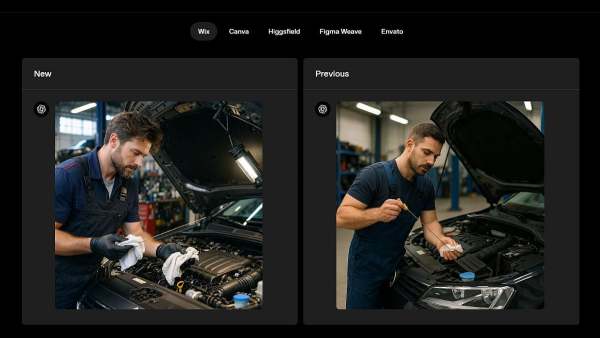
ChatGPT Images is rolling out for all users across the globe. It is available via the API as GPT Image 1.5. The new Images experience in ChatGPT is rolling out today for most users, with Business and Enterprise access coming later.
In probably one of the biggest developments, OpenAI has introduced ChatGPT Images, its most advanced imaging tool yet. The company claims that ChatGPT Images is able to generate images 4x faster. The new tool shows up in the menu bar right below the search chat option on the left side. ChatGPT Images looks to compete with the highly popular Google Gemini's Nano Banana image creation tool.
ChatGPT Images is rolling out for all users across the globe. It is available via the API as GPT Image 1.5. The new Images experience in ChatGPT is rolling out today for most users, with Business and Enterprise access coming later.
ChatGPT Images: What's New
> 4x better speed: The most notable improvement is speed - the new system generates images up to 4x faster than its predecessor, addressing one of the biggest complaints users had about waiting for image generation during peak usage times.
> Precise edits: Beyond speed, the model is much better at making precise edits while keeping important details intact, including lighting, composition, and people's appearances. When you ask it to change specific elements of an image, it now reliably modifies only what you request rather than altering the entire picture.
> Dedicated Images hub: The update introduces a dedicated Images feature within ChatGPT's interface, making the creative process more intuitive and accessible. This new hub includes pre-built filters and curated templates based on current trends, so you can generate images without even typing a prompt—simply select options like 'retro magazine layout' or 'futuristic food styling.'
> Advanced editing capabilities: The model excels at various editing techniques, including adding, subtracting, combining, blending, and transposing elements, while maintaining what makes the original image special. It can now handle prompts with multiple details better than older models, managing up to 10-20 objects in one image, and has dramatically improved text rendering capabilities, making signs, labels, and custom fonts look more realistic and readable.
ChatGPT Images: How to use it
If you are creating an image based on an idea, follow these steps:
1. Open ChatGPT on your web browser or mobile app
2. Look for the new Images tab in the sidebar menu (it should appear as a top-level menu item).
3. Click on the Images tab to enter the dedicated Images space.
4. Choose your starting point:
- Browse through the preset filters and prompts for inspiration
- Select a template style (like 'vintage poster' or 'modern minimalist') and let it generate without typing.
- Or type your own custom prompt describing what you want to create
5. Hit generate and wait for your image.
If you want to edit an existing images, follow these steps:
1. Upload an image to ChatGPT by clicking the attachment/upload button in the chat.
2. Once uploaded, click on the image to select it.
3. Use the Select tool (located in the top-right corner) to highlight specific areas you want to edit.
4. Type your editing instruction, being as specific as possible (e.g., "change the sky to sunset colors" or "add a cat sitting on the bench")
5. The model will update only the selected area while preserving everything else.
Pro Tips: The model works best with clear, detailed instructions. You can ask it to combine multiple images, blend styles, or transpose elements between photos. For complex edits, use the Select tool to focus changes on specific areas.
Contact to : xlf550402@gmail.com
Copyright © boyuanhulian 2020 - 2023. All Right Reserved.